Bridge mode and IP passthrough by brand: exact menu paths
Two routers in a row cause double NAT. The fix is to make one of them stop routing. This page gives the menu path for each major brand, with a link to the official help page.
Menus vary by model and firmware. The paths below come from each company’s own support pages. If your screen doesn’t match, follow the official link for your model.
Which device should you change?
- Change the ISP gateway (bridge mode or IP passthrough) if you want your own router or mesh to do all the routing. You keep all of your mesh system’s features. This is usually the better choice.
- Change your own router or mesh (access point mode) if the gateway can’t be bridged or you’d rather leave it alone. Your router then only provides Wi-Fi, and features like parental controls usually stop working.
- Do one or the other, not both.
You’ll need the admin login for the device you’re changing. See router default logins by brand.
ISP gateways: bridge mode or IP passthrough
| Provider or brand | Menu path | Good to know | Official help |
|---|---|---|---|
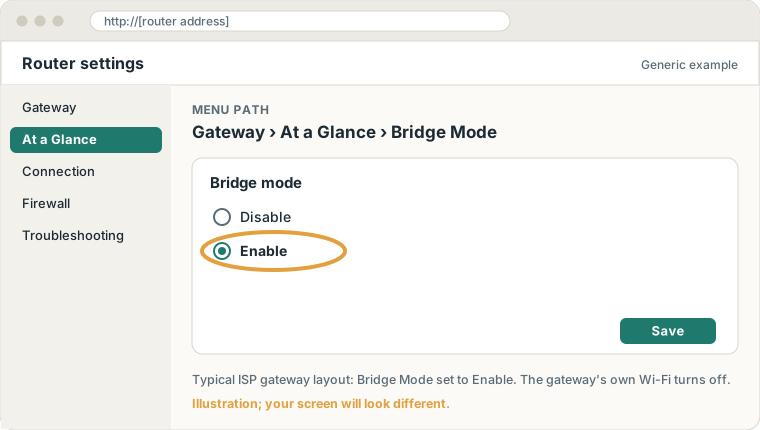
| Xfinity (Comcast) | Allow Admin Tool access in the Xfinity app, go to 10.0.0.1, then Gateway > At a Glance > Bridge Mode: Enable, and confirm with OK. | The gateway’s private Wi-Fi turns off and it may restart. Only one device can connect to it. Not available if you use Xfinity WiFi Extenders, and Xfinity CyberSecure stops working. A factory reset turns bridge mode off. | Xfinity bridge mode |
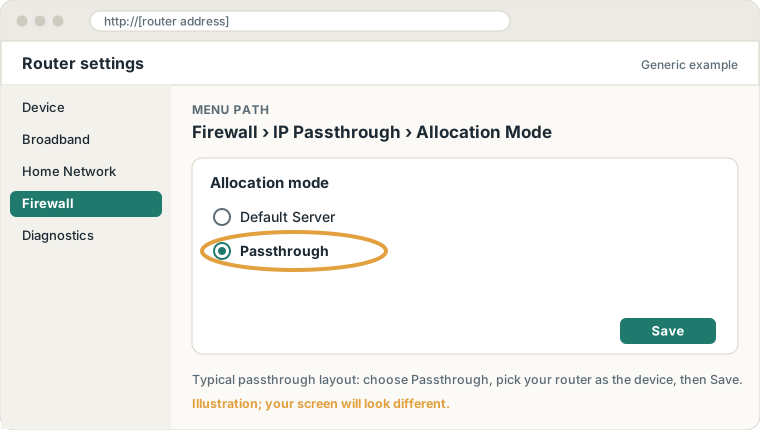
| AT&T (BGW210, BGW320) | 192.168.1.254 > Firewall > IP Passthrough. Set Allocation Mode to Passthrough and Passthrough Mode to DHCPS-fixed, enter your router’s MAC address in Passthrough Fixed MAC Address, then Save. | AT&T calls it IP passthrough, not bridge mode. It works for one device, and the gateway’s firewall no longer protects that device. The gateway keeps its own Wi-Fi, so turn that off separately. Other AT&T gateways may differ. | AT&T IP passthrough |
| Spectrum | No bridge or passthrough setting is documented for current Spectrum routers. | Spectrum’s WiFi 6E router connects to a separate modem. If you have a separate Spectrum modem, plug your own router or mesh into the modem instead of the Spectrum router. If you only have a combined modem-router, ask Spectrum. | Spectrum WiFi 6E user guide (PDF) |
| Arris SURFboard Wi-Fi gateways (G18, G20, G34, G36, G54) | SURFboard Central app: My Network > Network Settings > General Settings > Bridge Mode, slide it on, then tap OK. | The gateway reboots and works as a plain modem. To switch back, go to 192.168.0.1 > Gateway > Summary > Bridge Mode: Disable. | SURFboard Central bridge mode |
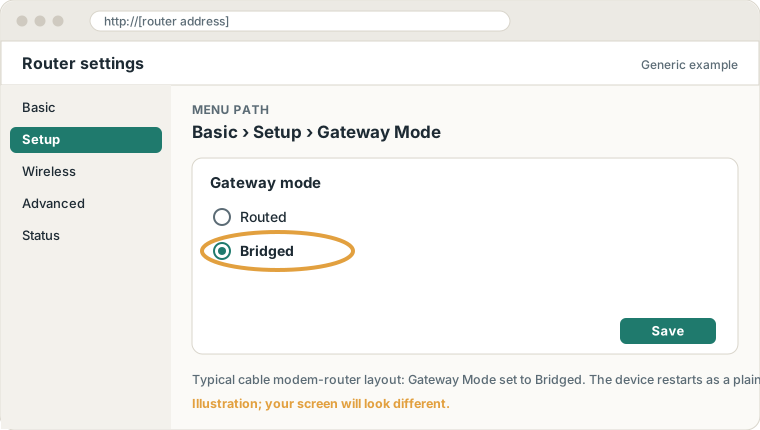
| Arris SURFboard SBG models (e.g. SBG6900-AC) | 192.168.0.1 > Basic > Setup > Gateway Mode: Bridged, then Apply. | The gateway restarts. To undo, set Gateway Mode back to Routed. Each SBG model has its own article. | SBG6900-AC bridge mode |
Your own router or mesh: access point mode
| Brand | Menu path | Good to know | Official help |
|---|---|---|---|
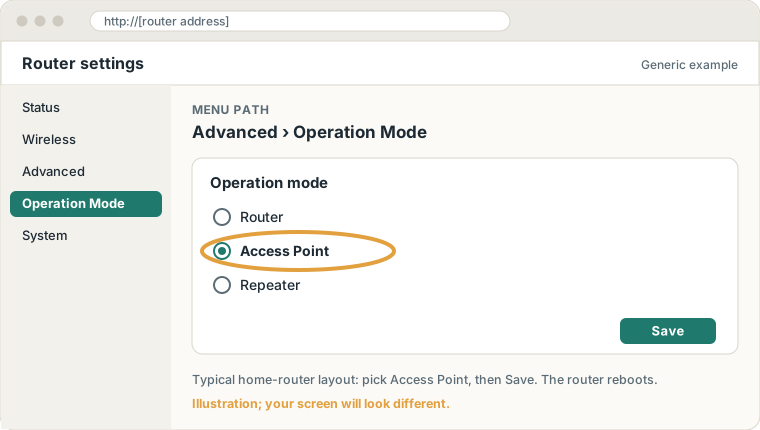
| TP-Link | Advanced > Operation Mode or Advanced > System > Operation Mode, then choose Access Point. Some models have a “Change Mode” button at the top right instead. | If your model has no Operation Mode menu, TP-Link’s alternative is to turn off DHCP and give the router a fixed LAN address. | TP-Link AP mode; without Operation Mode |
| Netgear (Nighthawk and most routers) | ADVANCED > Advanced Setup > Wireless AP. Turn on AP Mode, keep “Get dynamically from existing router”, then Apply. | Some models label it “Router / AP / Bridge Mode”. Nighthawk Pro Gaming routers: Settings > Setup > Wireless AP. | Netgear AP mode |
| Netgear Orbi | orbilogin.com > ADVANCED > Advanced > Router / AP Mode, then choose AP mode. | You can’t manage the setting from the Orbi app while in AP mode. | Orbi AP mode |
| ASUS | Web: Administration > Operation Mode > Access Point (AP) mode, then Save. App: Settings > System Settings > Operation Mode. | Firewall and NAT features turn off. Afterward, asusrouter.com stops working, so use the router’s IP from the main router’s device list. | ASUS AP mode; logging in afterward |
| Linksys (Velop and newer routers) | Web: Connectivity > Internet Settings > Edit > Connection Type: Bridge Mode. App: Menu > Advanced Settings > Internet Settings > Connection Type > Bridge Mode. | Parental controls and some other features turn off. Afterward, log in at http://Linksys plus the last five digits of the serial number, then .local. Dual-band routers use Configuration > Connectivity > WAN Setup. | Linksys bridge mode; in the app |
| Belkin (older routers) | In the web interface (192.168.2.1), open the Use as Access Point only page, choose Enable, set an IP address on your network, then Apply Changes. | Belkin documents this only in older router manuals. The router’s default IP in AP mode is 192.168.2.254 on the documented model. Check your model’s manual. | Belkin manual example (PDF) |
| D-Link | Varies by model. | D-Link lists bridge mode only for some models (DIR-895L, DIR-885L, DIR-880L, DIR-868L, DIR-865L, DIR-605L). For other models, check your model’s support page. | D-Link bridge mode models |
After you switch
- The device usually reboots. Give it a few minutes before you test.
- Connect your router’s WAN or Internet port to a LAN port on the gateway (or straight to the modem).
- Its admin address often changes. Find it in the other device’s list of connected devices, or use the address in the official article.
- To undo it, use the same menu, or do a factory reset as a last resort. A reset wipes all settings. See resetting a router.
Back to the mesh Wi-Fi guide’s double-NAT section.